Training Overview
The training overview shows all past training sessions of the currently logged-in user and is opened via the entry of the same name in the navigation bar of the main window. A double-click on a training opens the Training Detail with tiles, heart rate zones, map and charts; from there you can page through the trainings. When you return from the detail page, also after paging or via the navigation bar, the training viewed last is highlighted and has the keyboard focus.
Layout
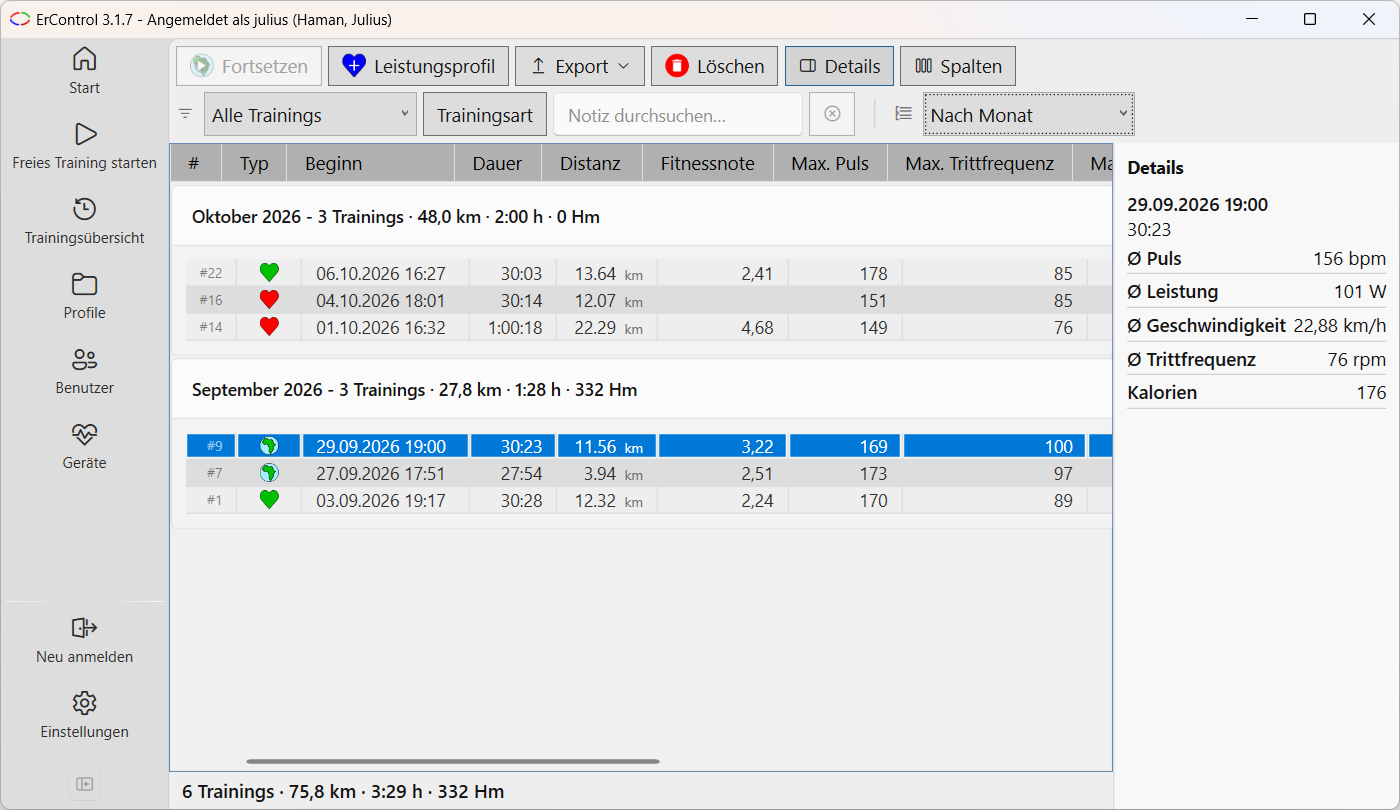
Training overview: toolbar and filter bar on top, table grouped by month with summary rows, details pane on the right.
Above the table, a toolbar with the actions and the Details and Columns buttons.
Below it, a filter bar, see Filtering and grouping.
Below it, on the left, a table listing the training sessions (newest first). On the far left is the fixed ID column (header #): the internal number of the training with a leading #, for example #501, discreetly in small type. It stays in place when scrolling sideways and can be neither moved nor hidden. Behind it follow the fixed columns Type, Start and Duration. Several rows can be selected at once with Ctrl- or Shift-click, see Multiple selection.
Next to it on the right, an optional detail panel with the values that are not currently shown as a table column (can be toggled with the Details button, available only while exactly one training is selected).
The Columns button lets you choose which further metrics are shown as table columns, including average and maximum values for heart rate, power, and cadence, distance, calories (in kcal), fitness score, Load and Focus (see Load and focus, hidden by default), and, for topographic profiles, ascent, descent, and total elevation. A leading Ø, Min. or Max. in the column header marks average, minimum and maximum values; the unit (km, km/h, W, m, bpm, rpm) is shown small after the number. The duration is shown as m:ss (h:mm:ss from one hour on), and its column is right-aligned. The Note is also a selectable column: ticked (default), it appears on one line in the table and long texts are shortened with “…”; unticked, it appears as the last entry in the detail panel on the right, there with the full text and line breaks. The note is edited on the training detail page. Column order and visibility are stored per user; the ID column is excepted.
Filtering and grouping
With many training sessions the list can be narrowed down and structured. The filter bar sits above the table:
Period: All trainings, This week (from Monday), This month, Last 30 days, This year or Custom with the fields From and To (short date format, both limits inclusive).
Training type: multiple selection from Free training, Heart rate, Power and Topographic profile.
Search field “Search notes…”: filters by the text of the note, ignoring upper and lower case.
Reset filters sets all filters back to “All”.
Group by: No grouping, By month or By training type. The groups can be collapsed, the group header shows the totals of the group. Sorting by column header applies within the groups; the groups themselves are sorted by month descending or by training type ascending.
Below the table is a summary row for the displayed trainings (count, distance, time, elevation gain); with an active filter additionally “x of y trainings”. Export (CSV) all exports the filtered trainings.
Period (including From/To), training type and grouping are saved and restored at the next start; the search text is not. If you return from the detail page to a training that the filter would hide, the filter is reset so that the training can be selected.
Multiple selection
Several trainings can be selected at once (Ctrl- or Shift-click). Export and Delete then act on all selected trainings, see Export. Continue, Power profile and Details, on the other hand, are only available while exactly one training is selected - with none or more than one selected, they are disabled.
Actions
The following actions are available for the trainings selected in the table:
Continue – only while exactly one training is selected: continues it (free training, heart-rate and power profiles). For a topographic training, the button is active as long as at least 100 m of the profile remain: it then opens the start window with the end position as the pre-filled start distance, see Continue Profile. At the end of the profile it is disabled. A different starting point can be chosen in the Profiles view via the start distance in the start window.
Power profile – only while exactly one training is selected: creates a new power profile from its data.
Export – see Export below.
Delete – permanently deletes the selected trainings after confirmation.
Export
The Export button opens a menu with Export (TCX), Export (FIT), Export (HRM), Export (CSV) and, separated below, Export (CSV) all (always all displayed trainings, regardless of the selection). TCX, FIT, HRM and CSV export the selected trainings in the respective format: with exactly one training selected via a file dialog, with several via a folder (the title names the count); a file Training<date>_<time>.<extension> is created for each training, with ‘ (2)’ appended on a name conflict. The TCX file contains the sport Biking, the average and maximum heart rate of the training, and, in the activity notes, first the note of the training (if there is one) and below it the maximum and resting heart rate saved at the time of the training; Garmin Connect and Strava show the average and maximum heart rate directly. The FIT file contains power, heart rate, cadence, speed, distance and elevation for every second (for topographic trainings also the position) as well as summaries for lap, session and activity; the TCX file contains the speed per trackpoint.
Every export contains only one training point per second, in chronological order, so that Garmin Connect and Strava accept the files; this also applies to older trainings that contain duplicate timestamps. Because ErControl stores the measuring points to the millisecond, FIT, HRM and CSV convert them to a grid of one point per second (distance, elevation and speed are interpolated in the process); TCX keeps the exact timestamps. In addition, the TCX file contains a position (latitude/longitude) only for topographic trainings; for all others it is omitted.
Exporting or deleting several trainings locks the main window meanwhile; if it takes longer than 2 seconds, a progress dialog with Cancel appears, which keeps the trainings already processed.