Installation
This chapter describes how to install ErControl.
Requirements
Windows 10 or 11
An ergometer with a serial interface/USB port, BLE FTMS support (or Tacx FE-C over Bluetooth), or ANT+ FE-C support
For ANT+ (trainer or heart rate monitor), additionally: an ANT+ USB stick with its driver (from the stick’s manufacturer, not part of the ErControl installation)
The ANT+ USB stick
The ANT+ stick is a small USB plug with the ANT+ logo (here an ANTUSB-m from Dynastream). The model name and approval marks are printed on the back.
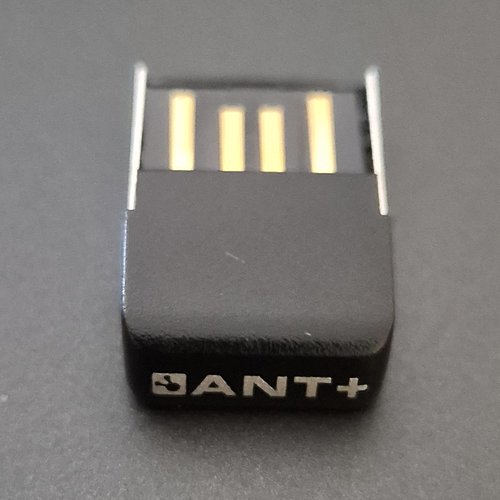
Front with USB plug and ANT+ logo
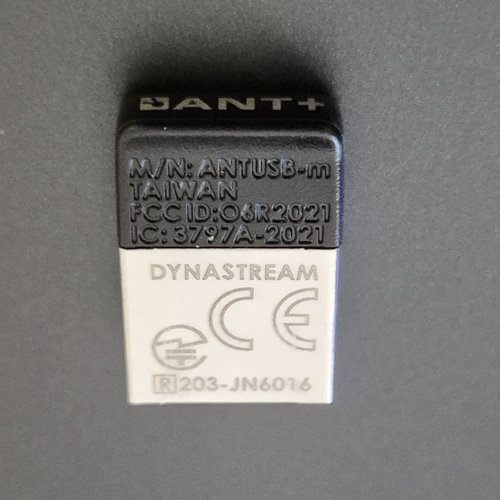
Back with model name (M/N: ANTUSB-m)
Installing via the setup
Download the current setup from the ErControl homepage.
Run the installer and follow the wizard.
Start ErControl via the newly created Start menu icon.
The setup installs AntInterface.exe automatically (its own AntInterface subdirectory) - for ANT+ (trainer or heart rate monitor), no separate installation step is needed afterwards, see Requirement for ANT+.
First start: database and first user
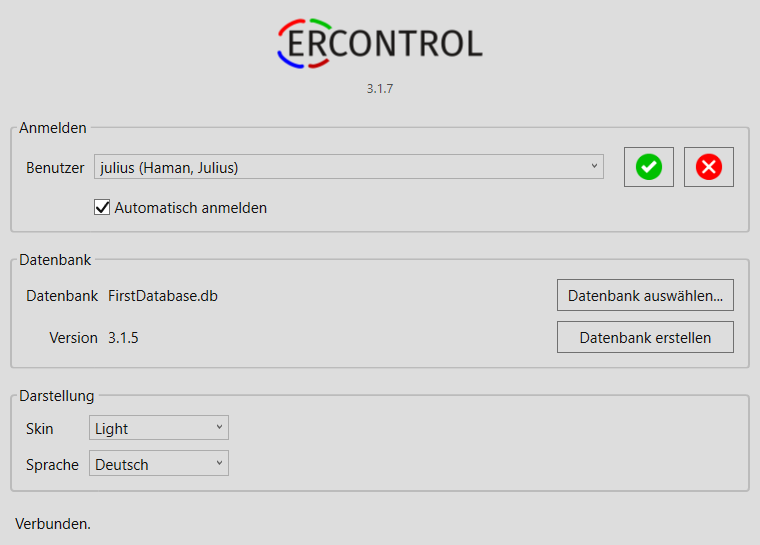
Start window: login, database and appearance. “Verbunden.” (connected) appears at the bottom once the database is open.
At the first start, you choose or create a database file in the start window. For a new database, the dialog Create first user then appears with the same fields as in user management (user ID, first name, last name, date of birth, sex, weight, resting heart rate, maximum heart rate, and starting power); if the maximum heart rate is missing, ErControl suggests a value there just as it does there, and the heart rate zones are already shown as a preview while you type. Create only becomes active once a user ID has been entered; Cancel (also via X or Alt+F4) discards the database that was just created, still empty, and restores the previous database. There is no automatically created administrator account anymore - the first user is always deliberately created via this dialog.
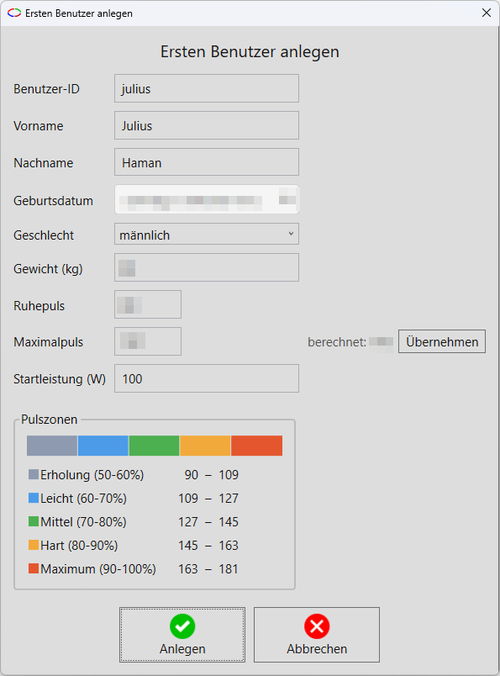
The Create first user dialog with the heart rate zone preview.
If a chosen database needs its data format updated (for example after an ErControl update), the migration runs automatically in the background; the start window shows “Migration running” meanwhile and is locked until it finishes. The original database file remains unchanged; ErControl then works with a newly created, migrated file. The name of the migrated file consists of the previous name without version information and the new database version, for example ErControl.3.1.5.0.db; an existing version suffix is replaced, even if the file was renamed by hand with an underscore before the version (ErControl_3.1.4.0.db becomes ErControl.3.1.5.0.db). If the target name already exists, ErControl appends a running number. If a migration fails, instead of “Connected” a short note pointing to the log appears, along with the Retry migration button.