Settings
The settings area is reached via Settings in the main navigation and is split into four tabs: Training, Ergometer, ANT+ / AntPowerBridge, and System. Changes only take effect once you click Save; Cancel discards them.
Training
Controls behavior during and after training. Applies only to the currently logged-in user.
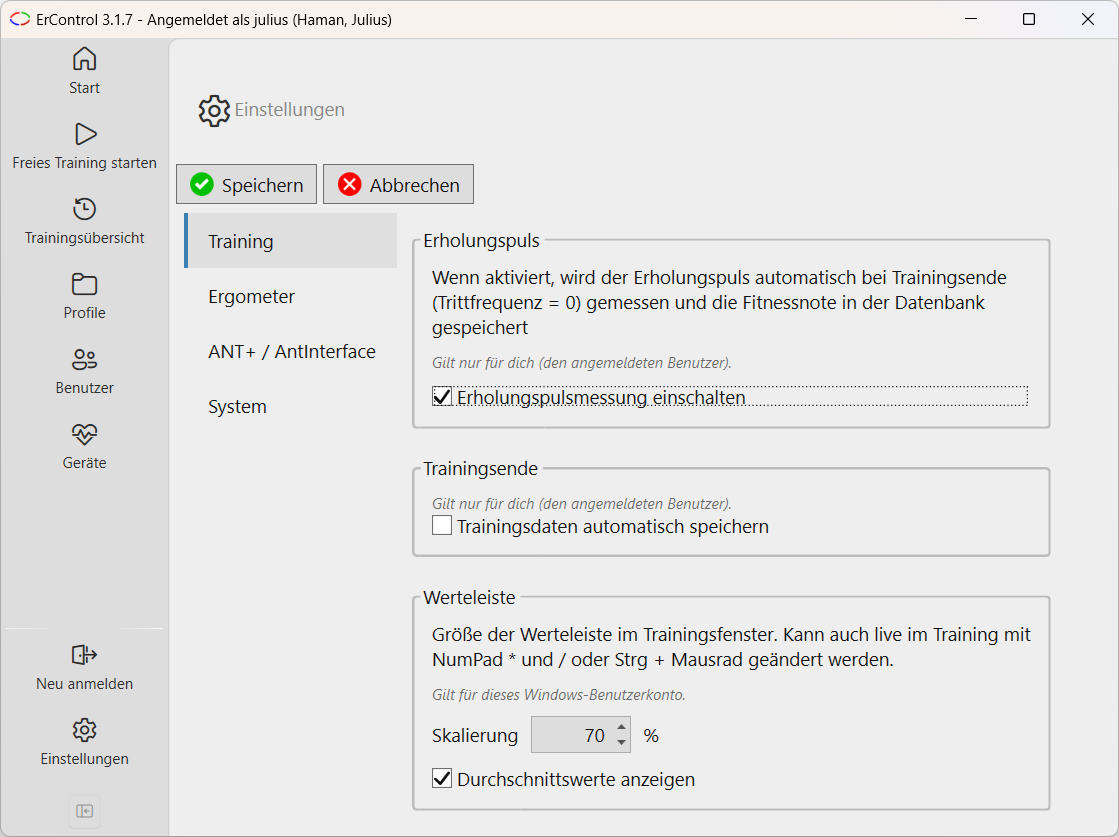
Settings, Training tab.
Recovery heart rate: When enabled, the recovery heart rate is automatically measured at the end of training (cadence = 0) and the fitness score is stored in the database.
Turn automatic saving of training data on or off.
Value bar → Scaling: size of the value bar in the training window as a percentage (50-300 %, in 5 % steps). Applies to this Windows user account, because the suitable size depends on the screen. It can also be changed live during training (Numpad *, Numpad / or Ctrl + mouse wheel), see Training window.
Value bar → Show average values: shows or hides the running averages on the right of the value bar (default: on). Like the scaling, it applies to this Windows user account, see Average values.
The settings for recovery pulse, automatic saving and gear shifter can also be changed directly during a running training via the gear icon; changes take effect immediately there and without Save, see Training window.
Ergometer
Hardware-level settings for the ergometer. Applies only to the currently logged-in user.
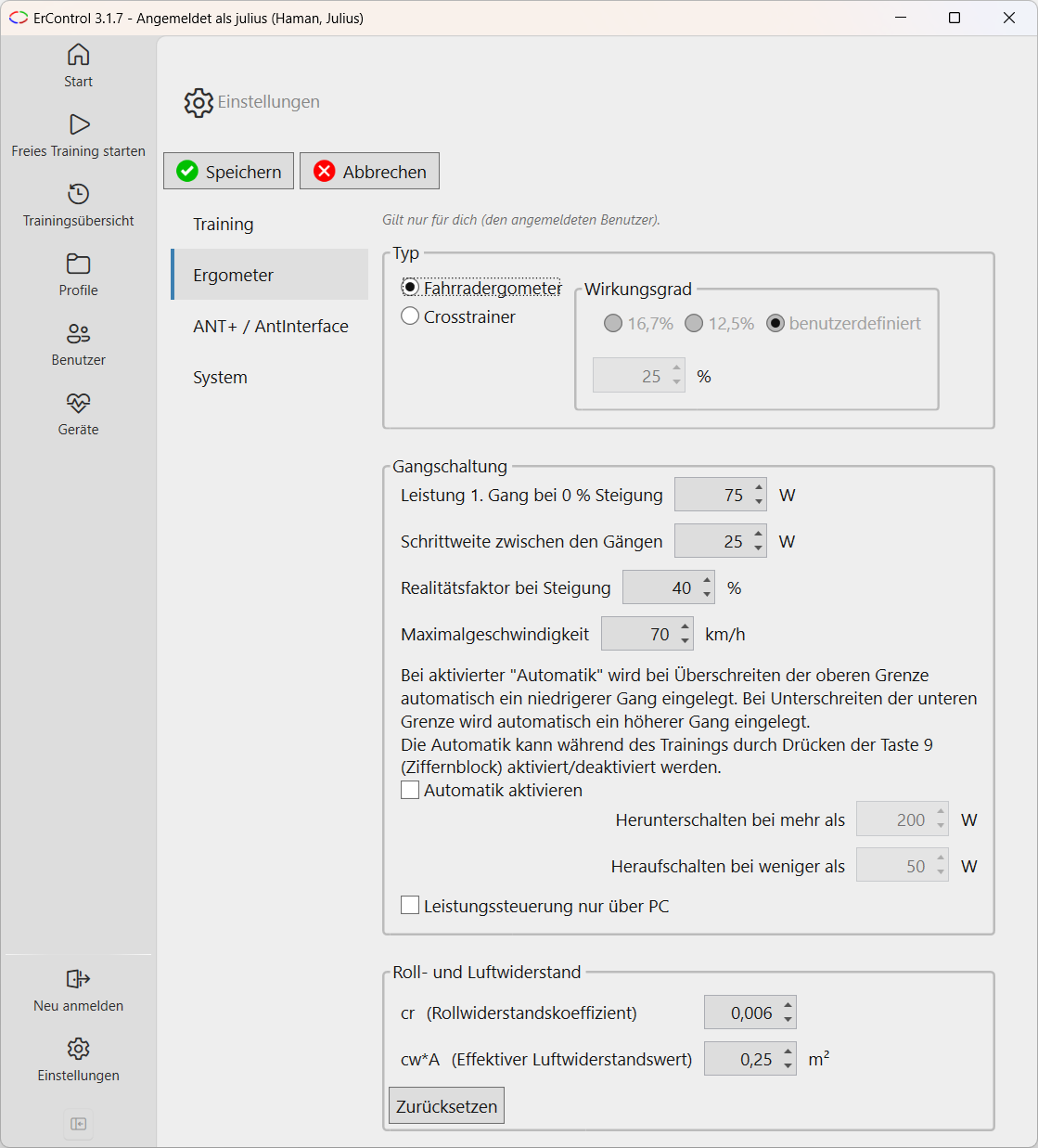
Settings, Ergometer tab.
The former setting Maximum power is gone: the power range (minimum, maximum, step size) is now set per training device under Devices.
Ergometer type: bike or cross-trainer, plus the efficiency (16.7 %, 12.5 %, or custom).
Gear Shifting: Power for gear 1 at 0% gradient (base power, 25-400 watts, default 75 watts), step between gears (1-100 watts, default 25 watts), reality factor for gradient (10-100%, default 40%) and maximum speed (20-120 km/h, default 70 km/h, above which coasting kicks in going downhill), plus automatic gear shifting with watt limits above/below which it shifts down/up - see Virtual Gear Shifting.
Power control via PC only: with gear shifting turned off, the gear-up/-down keys (Numpad +/-) directly adjust power in steps of the active training device’s step size (default: 5 watts) instead of shifting gears. Intended for ergometers whose own buttons on the device stop responding once it has been controlled by the PC. Applies only to Free Training and the topographic profile, not to the power/heart-rate profile (there the profile dictates power anyway). See Keyboard shortcuts during training for all keyboard shortcuts during training.
Resistances: physical parameters for the route simulation - rolling resistance coefficient (cr) and effective air drag (cw·A), with a reset button back to the default values.
The two values determine how “tough” the route simulation is: the higher cr and cw·A, the more power riding on flat terrain demands (or the lower the simulated speed at the same power). The following ranges, based on real values from road cycling, serve as a guide:
Use case |
cr |
cw·A |
|---|---|---|
Default (road bike, time-trial/aero position) |
0.006 |
0.25 |
Road bike, time-trial/aero position |
0.003–0.006 |
0.25 |
Road bike, normal racing position (drops) |
0.003–0.006 |
0.30–0.35 |
Road bike, upright position (hoods) |
0.003–0.006 |
0.35–0.40 |
Touring bike / commuter, upright |
0.008–0.010 |
0.40–0.50 |
Mountain bike, knobby tread (gravel/trail) |
0.010–0.020 |
0.45–0.60 |
These ranges are guidelines - cw·A also depends on the rider’s height and build (taller/heavier riders have a larger frontal area); the simulation additionally assumes a bike weight of 10 kg and smooth road-racing tires. If you want a realistic “on the road” feel, keep the default values; to simulate more of a touring-bike or MTB character, the higher values in the table are the right choice. Easy starting point: the reset button always brings you back to the defaults (road bike, aero position).
ANT+ / AntInterface
Connects to the external AntInterface.exe.
AntInterface (base)
Establishes the ANT+ connection for trainers (FE-C) and heart rate monitors selected in the Devices area. It can also be used to forward power and cadence to another device (see below).
Path to
AntInterface.exe- it is started automatically when training starts, if a path is available. The setup installs the file automatically; as long as it is present, the field shows this path and is locked (no Browse button, an entry would be ignored anyway), see Requirement for ANT+. Only if it is missing can a different path be entered here by hand. Applies to all users on this PC.
The actual device pairing (which ANT+ or BLE trainer, fixed device number or address, connection test) is no longer here - that is now part of the Devices area.
Forward power/cadence
Additionally sends the training data as its own ANT+ sensor to another device, e.g. a Garmin watch.
Checkbox Enable ANT+ - applies only to the currently logged-in user.
Device ID used for communication - applies to all users on this PC.
System
General program settings.
Check for a new version at program start (applies only to the logged-in user, enabled by default): ErControl checks in the background when the home page opens whether a newer version exists and then points it out on the home page, see Notice about a new version. The check happens once per program start; if the computer is offline, it stays silent.
Log in automatically: signs you in immediately at program start with the most recently used user, without clicking “Log in” in the start window. With “Sign in again” from within the running app, the automatic login is suppressed so you can actually pick another user there. Applies to this Windows user account.
Set the log level and serial logging, open the log directory directly (applies to this Windows user account).